How to Import an ESX File into Xactimate



What is an ESX File?
An ESX file is a structured estimate file used by Xactimate. Unlike PDFs, which are static documents, ESX files contain editable data. Learn more in our guide to What is an ESX file in Xactimate.
If you work with insurance estimates, contractors, public adjusters, and estimators have the ability to share their estimate via an ESX file, allowing estimators to import a complete estimate including line items, quantities, and notes.
How to Import an ESX file into Xactimate
Step 1: Open Xactimate
Launch Xactimate (Desktop) and navigate to your Projects dashboard.

Step 2: Open Tools → Data Transfer (Import)
On the left, select Tools, then the "Import" radio button. Set the folder "Location" where your ESX file is located, then click on "SELECT DATA."
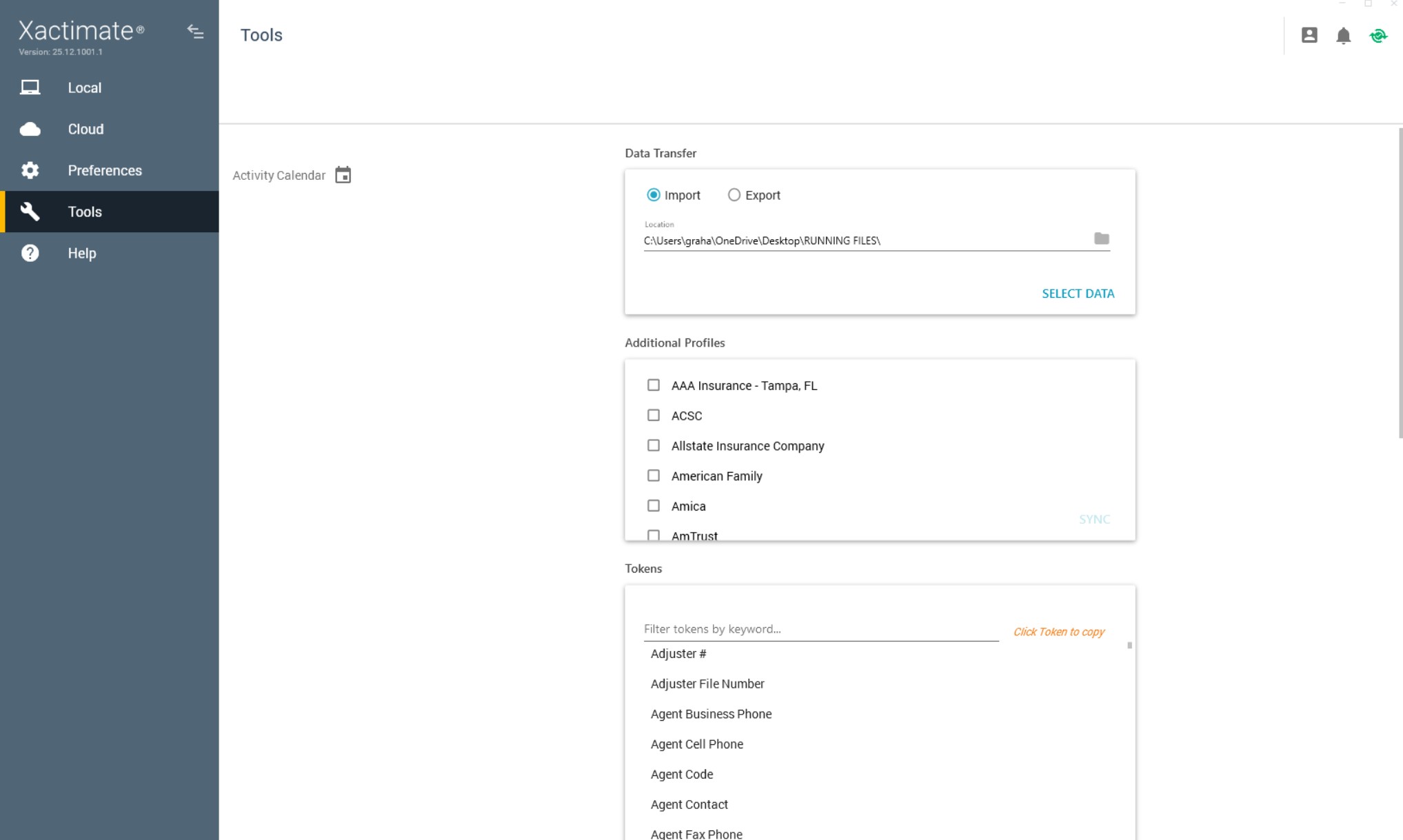
Step 3: Select and import the ESX File
The DATA Transfer window will appear. Choose your .ESX file and click on "IMPORT". A message stating "Import Successful" will show, then select CLOSE.
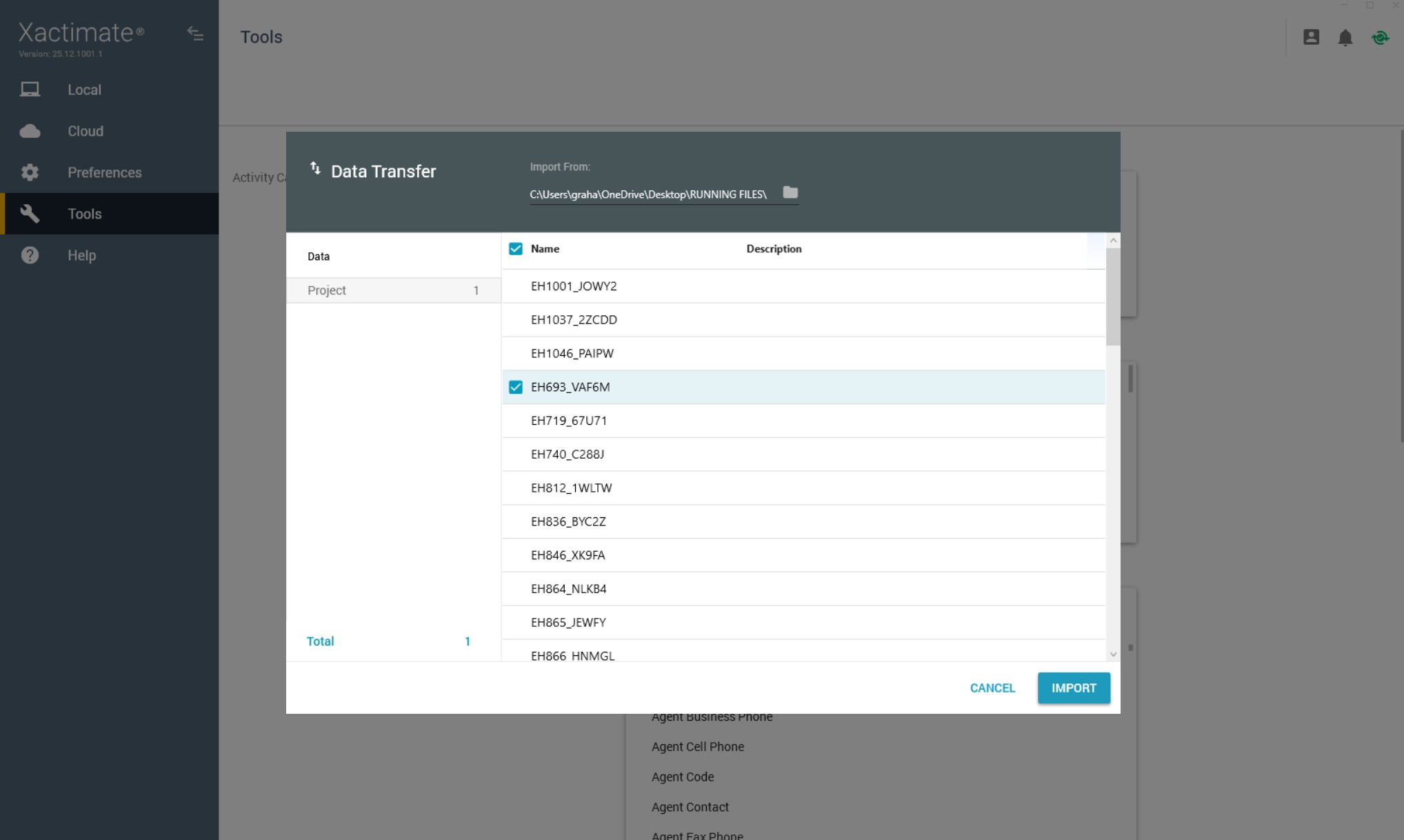
Step 4: Confirm Import & Open Xactimate file
Select "Local" at the top left, which takes you to your local files. You will see this new file (e.g. EH693_VAF6M). Double click this file and it will open.
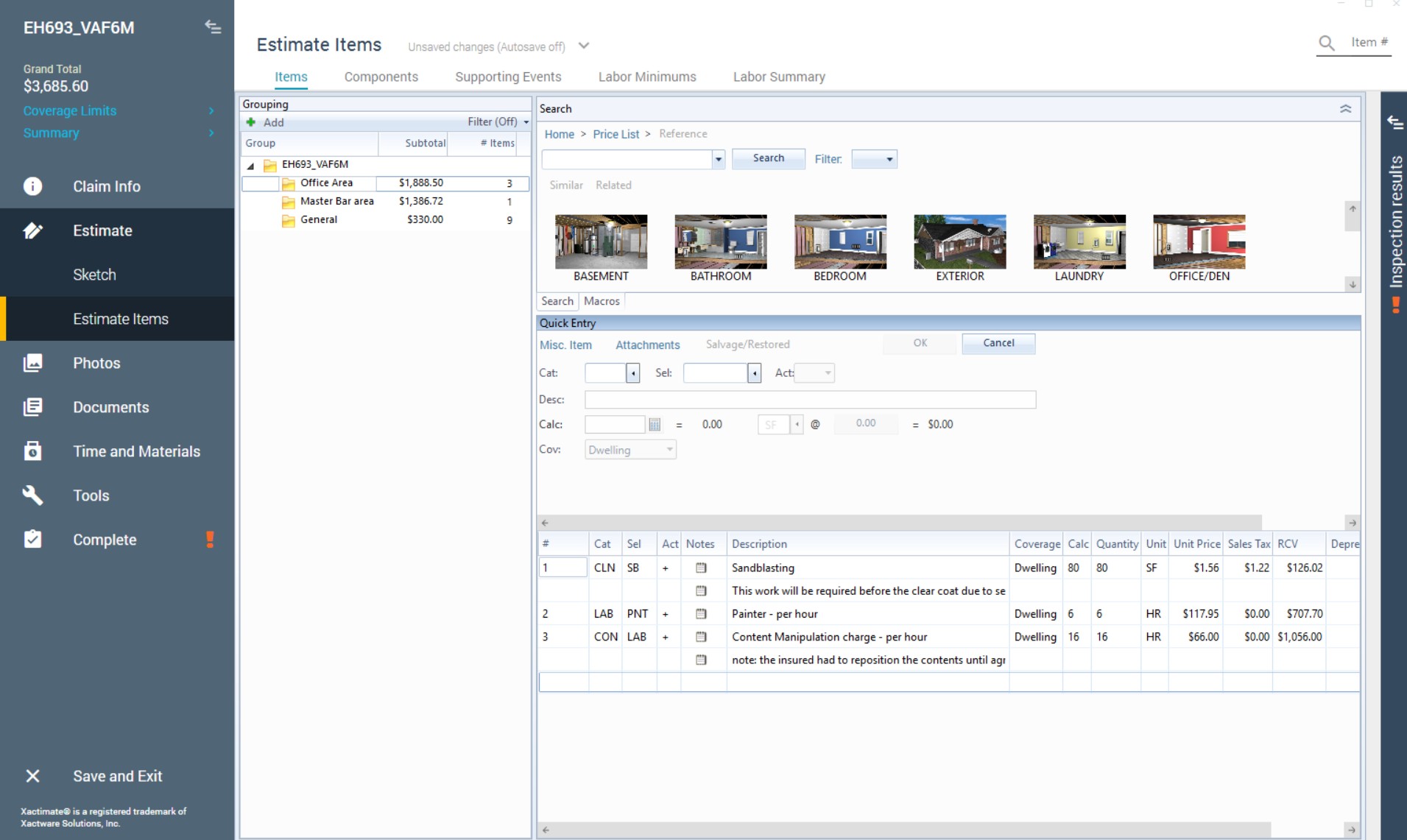
Step 5: Revise and Save Estimate
Make any necessary revisions to your file. Once completed, ensure you save the file. To do this, look for "Save and Exit" at the bottom left. You will be asked "Do you want to save changes", select YES.
Common Issues When Importing ESX Files
Carrier Profile is Different
When importing an ESX file, the profile used in the file must match one of the profiles installed on your computer. If the required profile is not available, Xactimate will return an error message stating “Profile unavailable.” Solution is to go to Preferences > Project to confirm that you have the profile that matches the imported file.
Pricing Differences
Pricing may update based on your current Xactimate price list.
File Compatibility
Make sure the file is .ESX not .PDF as Xactimate cannot import PDFs directly.
Can Xactimate Import a PDF?
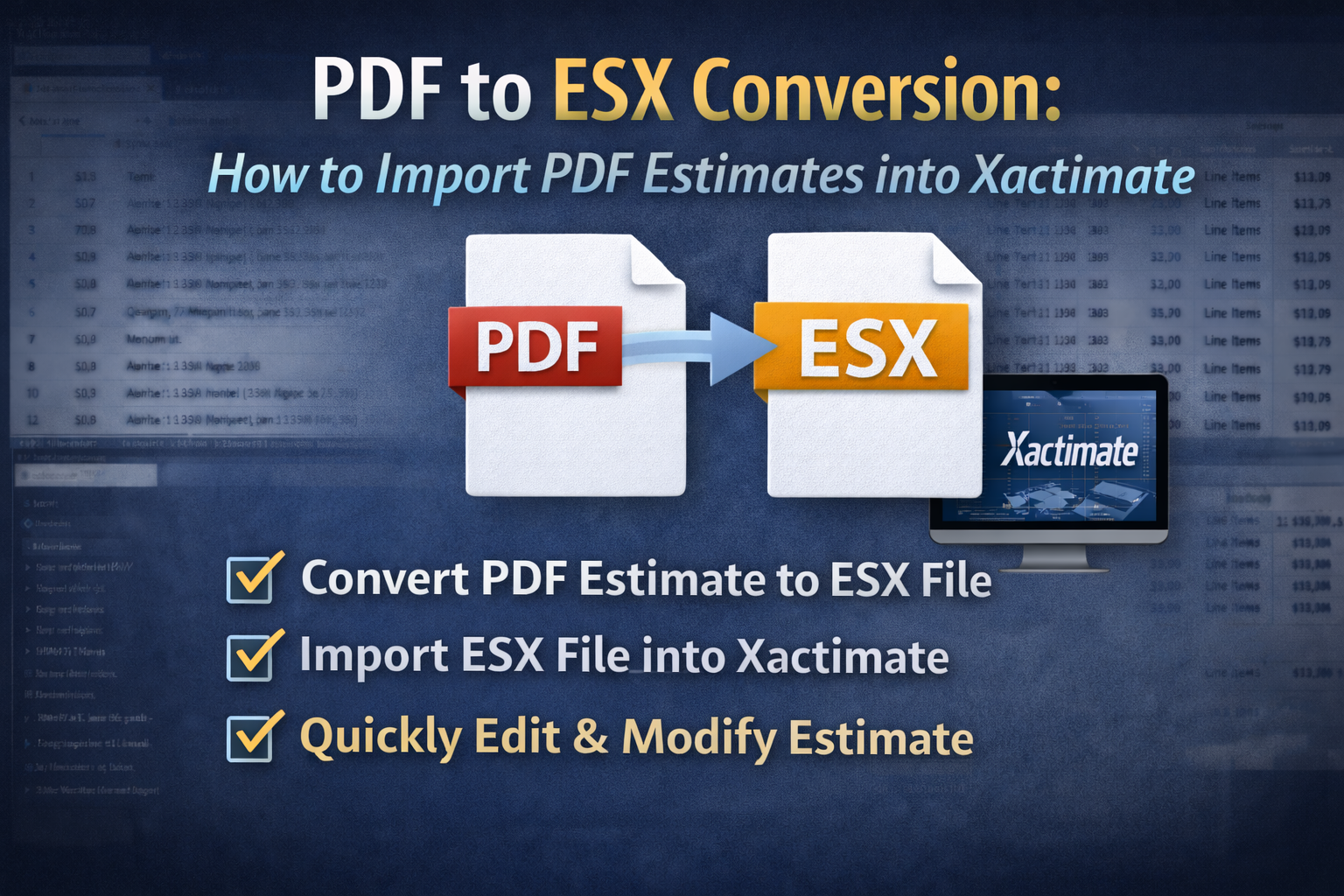
No. Xactimate can’t import PDFs directly. To work with editable estimate data inside Xactimate, you need an ESX file. If you only have a PDF, EstimateHub provides a solution where you can convert a PDF into an ESX file so you can import it into Xactimate. Check out the PDF to ESX Converter.
Conclusion
Importing an ESX file into Xactimate is simple once you have the correct file format. ESX files allow contractors and adjusters to work with fully editable estimates instead of static PDFs. If you only have a PDF estimate, converting it into an ESX file can save hours of manual rebuilding.