How Contractors Reconcile Insurance Adjuster Estimates in Xactimate



How Contractors Reconcile Insurance Adjuster Estimates in Xactimate
When a contractor receives an insurance adjuster’s estimate, it rarely matches their own scope of work. The adjuster may miss items, use different line items, or interpret the repair scope differently. Reconciling these differences inside Xactimate is a normal part of the claims process. Contractors must compare the adjuster’s estimate with their own scope, identify discrepancies, and document the changes needed to complete the repair properly. Understanding how estimate reconciliation works in Xactimate can make negotiations faster, clearer, and more productive for everyone involved.
Why Contractor and Adjuster Estimates Often Differ
Contractor estimates and insurance adjuster estimates are created from different perspectives. Adjusters are responsible for estimating the cost of restoring a property to its pre-loss condition based on the information available at the time of inspection. Contractors, on the other hand, are responsible for actually completing the repairs. Because of this difference in responsibility, contractor estimates often include additional scope items such as:
- Hidden damage discovered during demolition
- Code-required upgrades
- Additional labor or materials required to complete the repair
- Work that was not visible during the initial inspection
These differences are why estimate reconciliation is necessary before repairs begin.
The Typical Contractor Reconciliation Workflow in Xactimate
Most contractors follow a structured process when reconciling an adjuster estimate.
1. Obtain the Adjuster Estimate
The first step is obtaining the adjuster’s estimate. This may be shared as either:
- An ESX file
- A PDF estimate
An ESX file is ideal because it can be opened directly inside Xactimate. However, many adjusters send only the PDF version of the estimate, which makes reconciliation much more difficult.
2. Import the Estimate into Xactimate
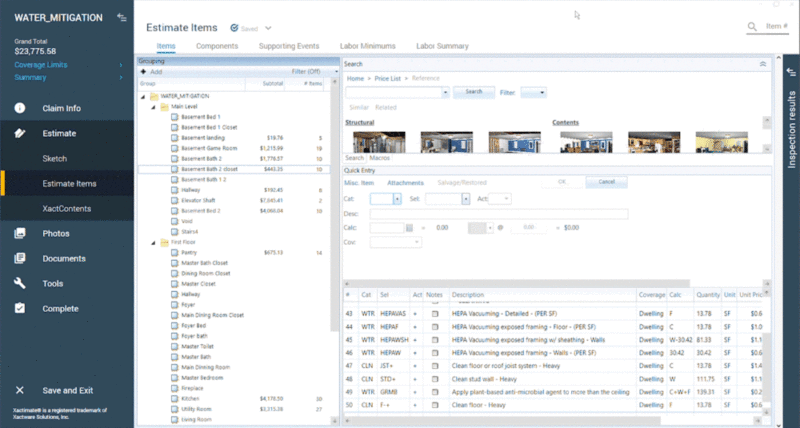
If the contractor receives the estimate as an ESX file, it can be imported directly into Xactimate.
Once imported, the contractor can:
- Review line items
- Compare scope by room or category
- Modify quantities and pricing
- Add missing items
This creates a working estimate that can be updated and submitted as part of the reconciliation process.
3. Compare Scope of Work
The contractor then compares the adjuster estimate to their own scope of work.
Common discrepancies include:
- Missing line items
- Incorrect quantities
- Differences in material specifications
- Labor items that were excluded
These differences are typically identified during the estimate review process.
4. Add Missing Line Items
After identifying the differences, contractors update the estimate by adding the necessary line items required to complete the repair properly.
These additions may include:
- Additional demolition work
- Drying or mitigation steps
- Code-required repairs
- Supplemental materials
Contractors often document these changes with notes explaining why the additional scope is required.
5. Submit a Supplement
Once the revised estimate is complete, contractors submit a supplement to the insurance carrier.
The supplement typically includes:
- The updated Xactimate estimate
- Supporting documentation
- Photos or inspection notes
The adjuster then reviews the revised estimate and negotiates any remaining differences.
The Problem with PDF Estimates
Many reconciliation delays occur because adjusters send estimates as PDFs instead of ESX files. A PDF estimate is essentially a static document. While it shows the estimate details, it cannot be edited or analyzed directly inside Xactimate.
This forces contractors to:
- Manually rebuild the estimate
- Re-type line items
- Recreate the estimate structure from scratch
For large estimates, this process can take hours or even days.
Converting a PDF Estimate Back into Xactimate
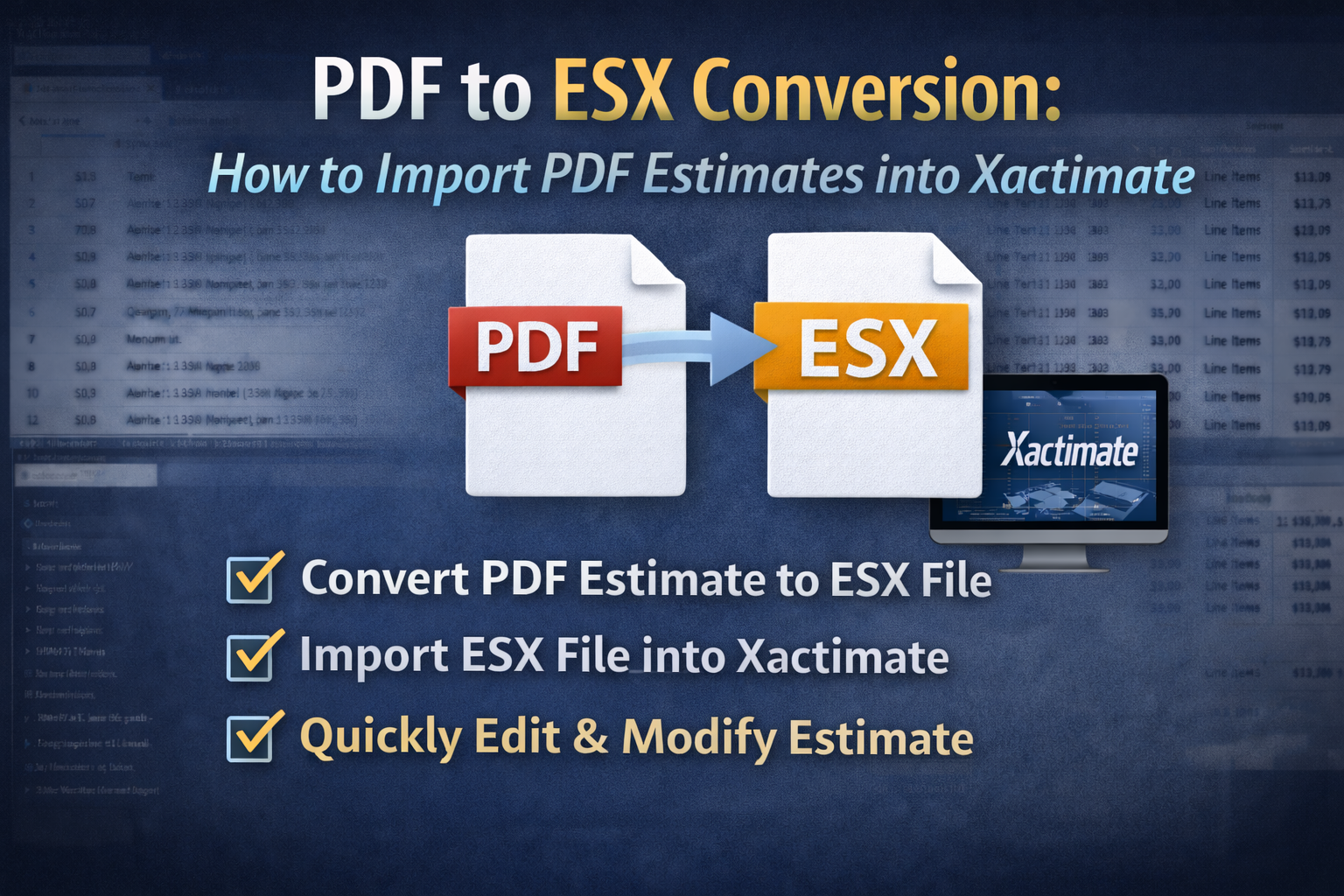
To solve this problem, some contractors use PDF to ESX conversion tool. A PDF to ESX converter analyzes the estimate PDF and reconstructs the estimate data into an ESX file that can be imported into Xactimate.
Once converted, the contractor can:
- Open the estimate directly in Xactimate
- Review scope differences quickly
- Add missing line items
- Submit supplements faster
This approach dramatically reduces the time required to reconcile adjuster estimates.
Using EstimateHub to Reconcile Estimates Faster
EstimateHub provides a PDF to ESX conversion tool designed specifically for Xactimate users.
With EstimateHub, contractors can:
- Upload the adjuster’s PDF estimate
- Convert the PDF into a structured ESX file
- Import the file directly into Xactimate
This allows contractors to work with the adjuster’s estimate immediately without rebuilding it line by line. For large estimates with hundreds of line items, this can save hours of manual work.
ESX World: Reusable Xactimate Estimate Templates
EstimateHub also provides ESX World, a library of downloadable ESX templates. These templates help contractors build estimates faster by providing structured estimate frameworks that can be imported directly into Xactimate.
Examples include:
- Small estimate templates
- Large loss estimate structures
- Macro-style line item stacks
By starting from a structured template instead of building estimates from scratch, contractors can speed up the reconciliation process and maintain consistent estimate organization.
The Key to Faster Estimate Reconciliation
Reconciling insurance adjuster estimates in Xactimate is a routine part of the claims process. The key is having the right tools and workflow in place. When contractors can quickly import and analyze the adjuster’s estimate, they can focus their time on identifying scope differences and negotiating fair repairs instead of rebuilding estimates manually. Tools that restore the estimate structure — such as converting PDF estimates back into ESX files — can dramatically reduce the time required to reconcile claims and move projects forward.